
Quotes, invoices and payment links your customers get on WhatsApp
Invoice software for small businesses that sell over WhatsApp. Send a quote, turn it into an invoice when the customer says yes, and send a payment link they can pay from their phone. Every quote, invoice and payment sits on the customer’s record in your CRM.
- Quote to invoice in one click
- Stripe and PayPal pay links
- Partial payments
- Automatic reminders
Online payments go to your own Stripe or PayPal account. FOXAF never holds the money.
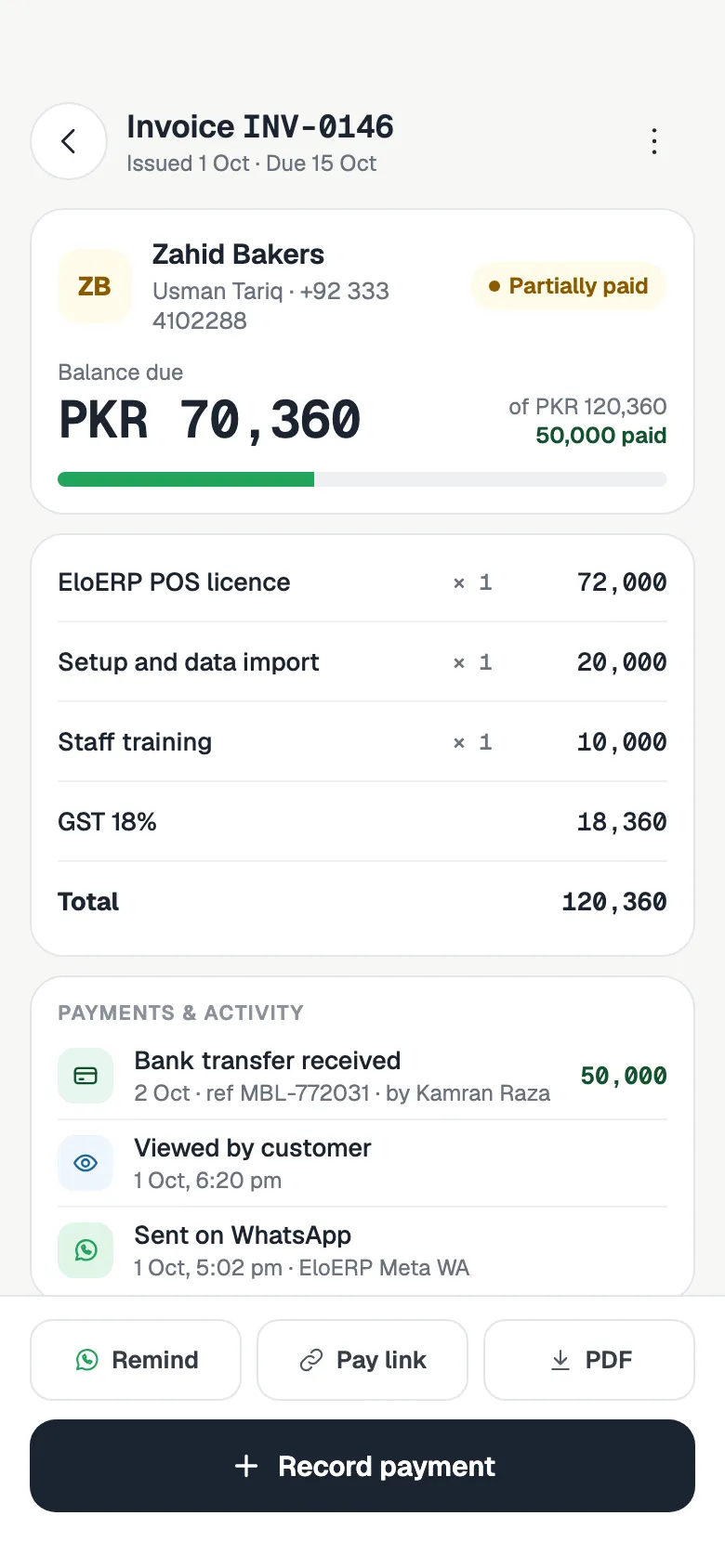
A quote in a couple of minutes
Choose the customer from your contacts and add the items. FOXAF works out the subtotal, discount, tax and total, and numbers the quote for you. Add notes and terms for the customer, then send it from the WhatsApp line or email account they already know.
- Pick lines from your product list, or type them in
- Discounts on a line or on the whole quote
- A valid-until date, after which the quote expires on its own
- Send on WhatsApp or email, with the PDF and a link to accept
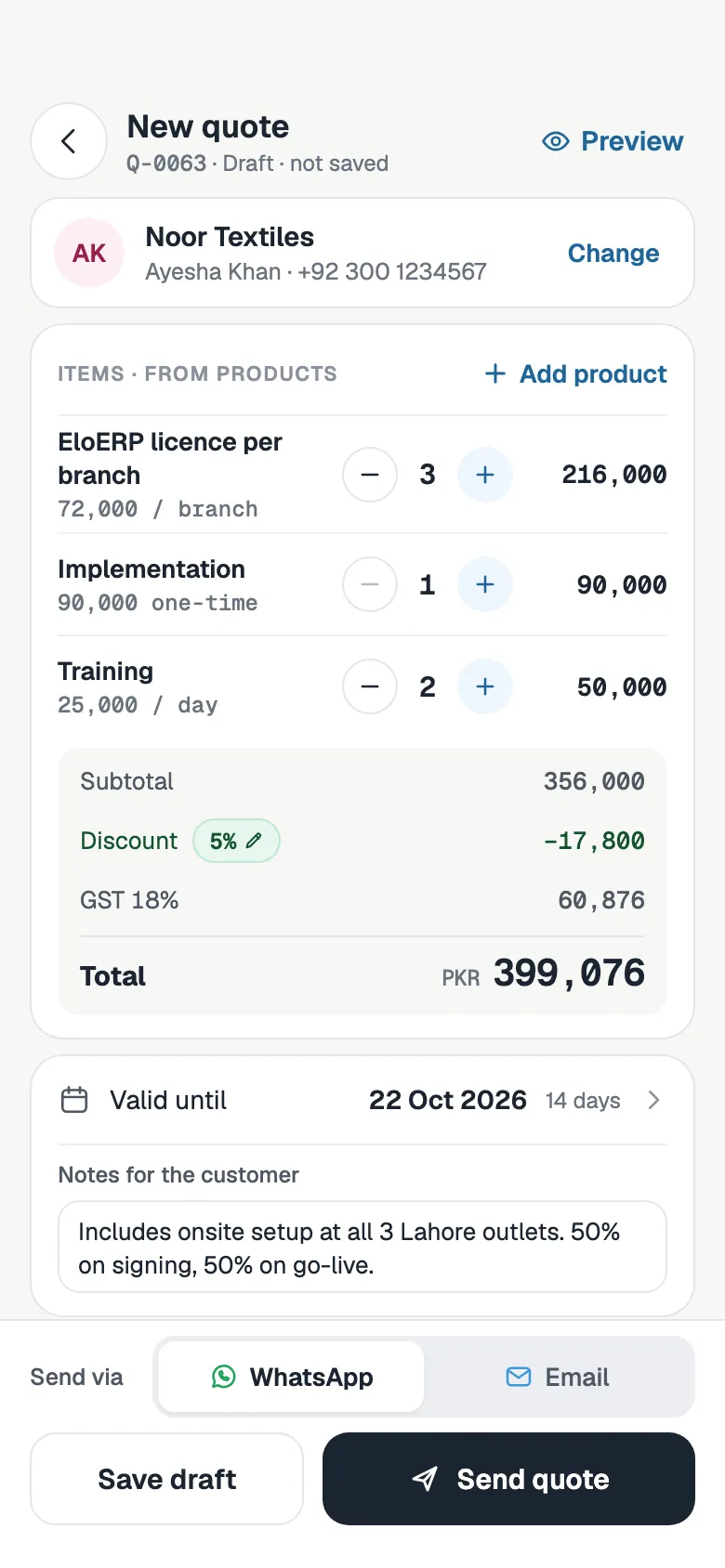
From quote to invoice in one click
Once the customer accepts, there is nothing to retype. The invoice is created as a draft with the same lines, ready to check and send. The quote keeps a link to it, so you can always see where an invoice came from.
- See when the customer opens the quote
- They accept it online, with a signature if you ask for one
- Convert to invoice copies the customer, lines, discount and currency
- Optionally move the linked deal to Won when a quote is accepted
Send a payment link on WhatsApp
Connect Stripe, PayPal or both with your own account keys. Every invoice you send then carries a link the customer can pay from.
- Step 1
Send the invoice
It goes on WhatsApp with the PDF and a link to view and pay, or by email. The message lands in the customer’s conversation in your inbox.
- Step 2
The customer pays online
They open the invoice and pay the balance by card through Stripe, or with PayPal. Your bank details can show on the invoice too.
- Step 3
It is recorded for you
The payment is recorded against the invoice, the balance updates and a fully paid invoice is marked Paid.
Partial payments, overdue invoices and reminders
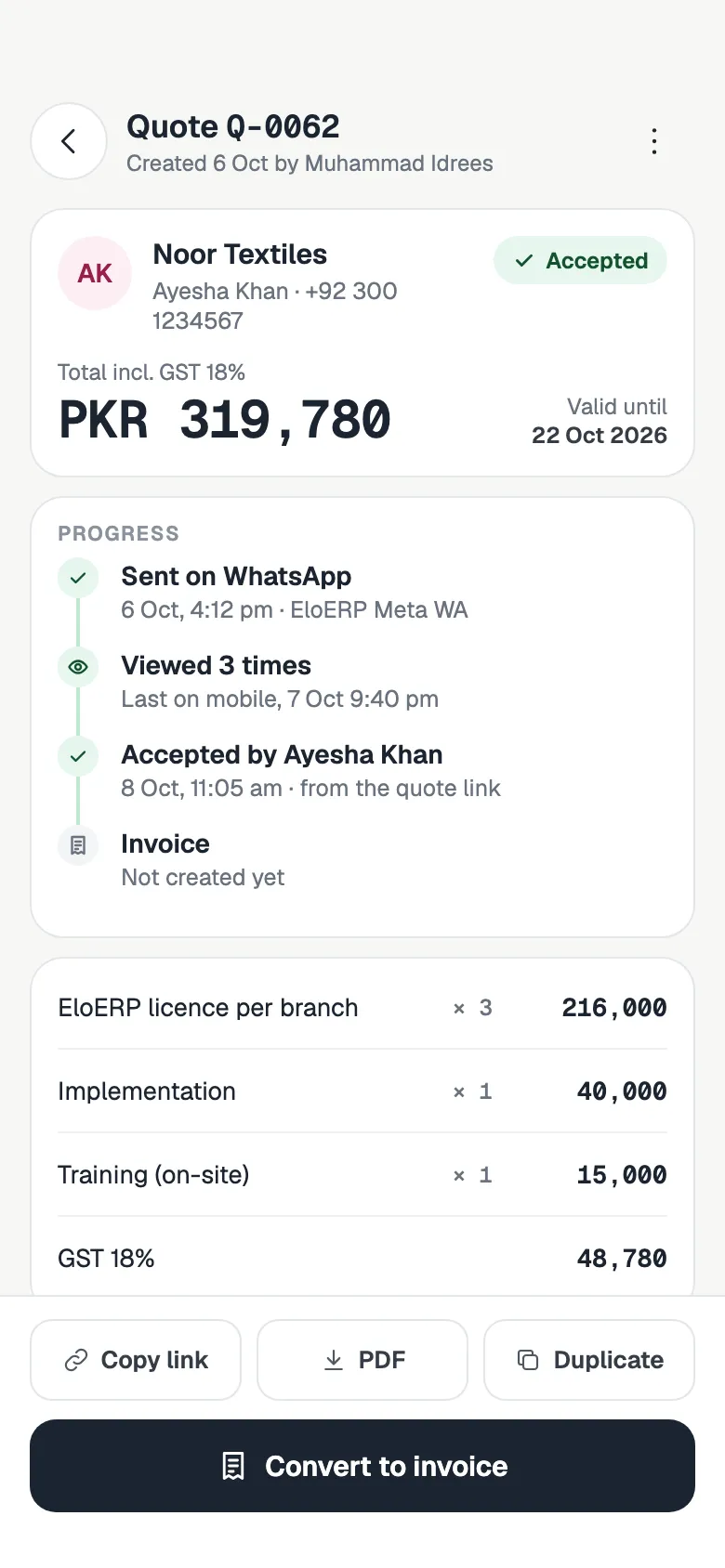
Many customers pay in parts, or by bank transfer. Record each payment with its date and reference, and the invoice shows what is still owed. When the full amount is in, it is marked Paid.
Reminders go out automatically: by default 3 days before the due date, on the day, and 3 and 7 days after. They go by email when the customer has an email address, and on WhatsApp when they do not. You can pause them for any one invoice.
- Record bank transfers, cash, card and other payments by hand, for any amount
- See the balance due after each part payment
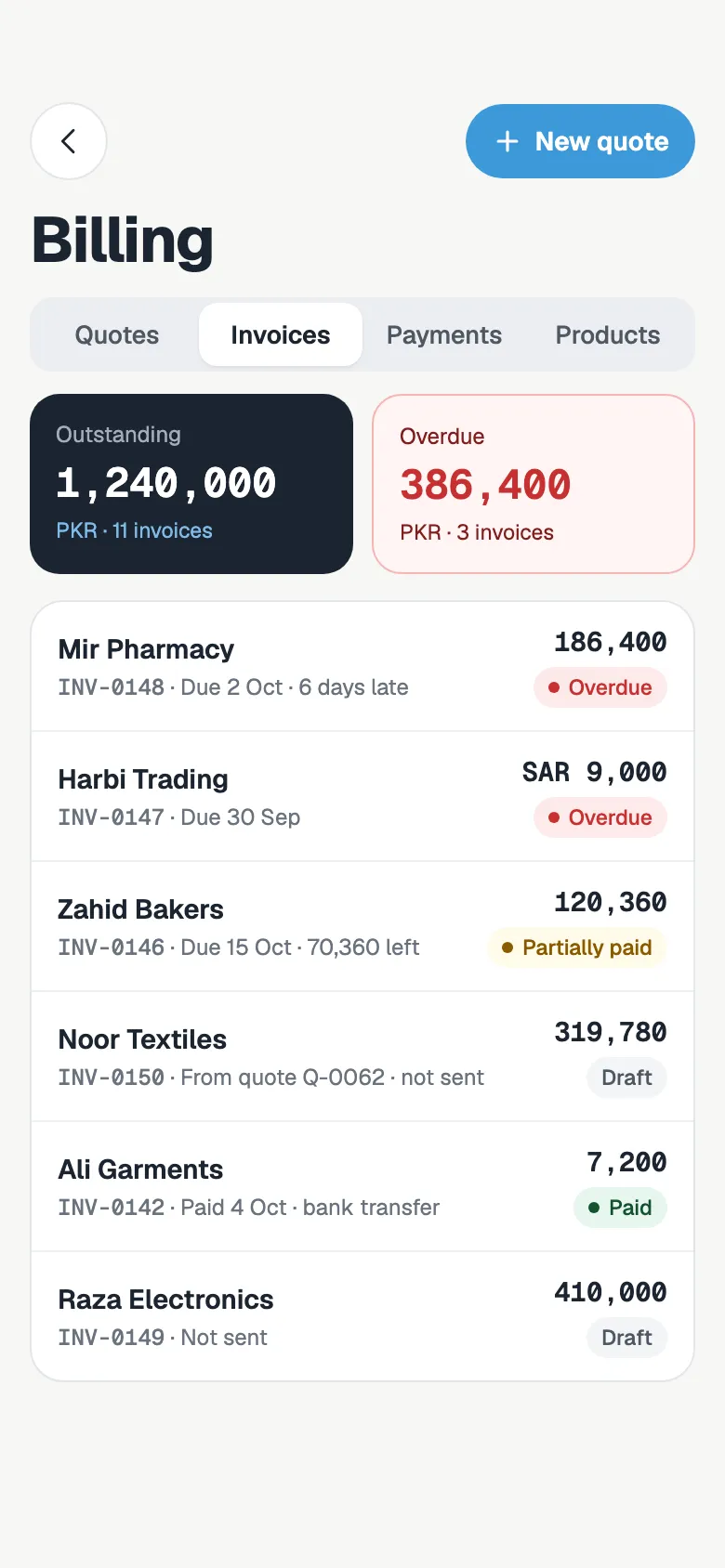
- Outstanding and overdue totals at the top of the list
- Reminders before and after the due date, on a schedule you set
Your products, your tax rules
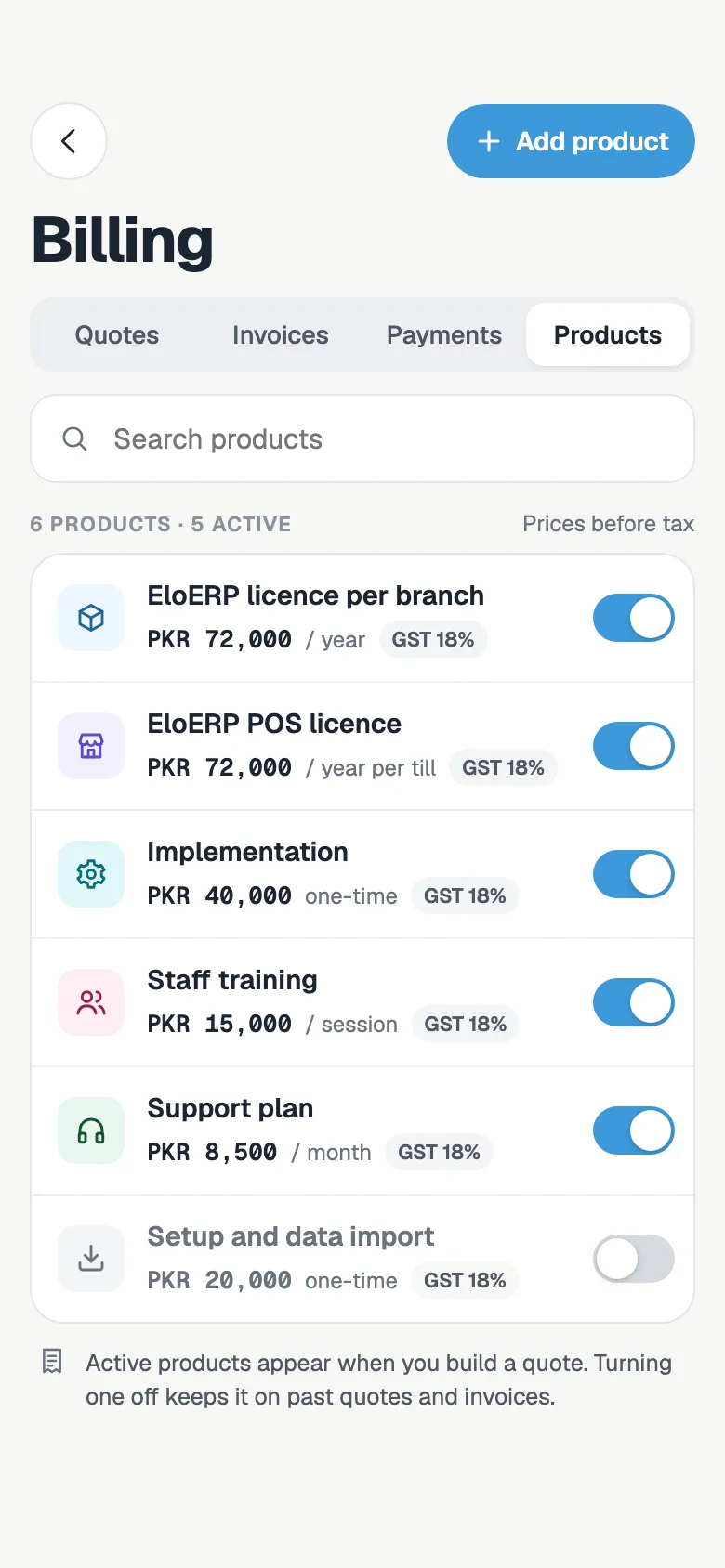
Set your tax label and default rate once, and override the rate on any product or line. Turn off a product you no longer sell and it stays on old quotes and invoices.
- A product catalogue with prices, SKUs and a tax rate on each item
- Name the tax the way you need it: GST, VAT or Sales tax
- Prices that include tax, or tax added on top
- Each quote and invoice can be in its own currency
Billing that knows the customer and the deal
Quotes and invoices live on the contact and the deal, next to the conversation they came from.
Deals close themselves
Set a pipeline to move the deal to Won when the quote is accepted or the invoice is paid.
Workflows on billing events
Start a workflow when a quote is sent, viewed, accepted or declined, or when an invoice is sent, paid or overdue.
Session packages
Sell a package of sessions. When the invoice is paid, the sessions are added to the customer and counted down as they are used.
Everything on the timeline
Sent, viewed, accepted and paid show on the contact, so anyone on the team can answer “did they pay?”.
PDFs with your brand
Every quote and invoice has a PDF with your logo and details, for the customer or for your records.
Free quotation generator
Need a quick one-off quotation? Make one in your browser with the free generator, no account needed.
Quotes and invoices, answered
Can I send an invoice with a payment link on WhatsApp?
Yes. Send the invoice from FOXAF on your WhatsApp line and the message carries the PDF and a link to the invoice. If you have connected Stripe or PayPal, the customer can pay the balance from that page, and the payment is recorded on the invoice.
Which payment gateways can I connect?
Stripe and PayPal, each with your own account. Payments go straight into your account; FOXAF never holds the money. Bank transfers, cash and other payments you receive can be recorded on the invoice by hand, and your bank details can appear on the invoice.
How do I turn a quote into an invoice?
When the customer accepts the quote, click Convert to invoice. FOXAF creates a draft invoice with the same customer, lines, discount, currency and deal, ready for you to check and send.
Can I add GST or VAT to quotes and invoices?
Yes. Set your tax label, such as GST or VAT, and a default rate. Each product and each line can carry its own rate, and you choose whether prices include tax or have it added on top.
Does it handle partial payments?
Yes. Record any amount against an invoice with its date, method and reference. The balance due updates after each payment, and the invoice is marked Paid when the full amount is in.
How do payment reminders work?
Reminders go out automatically on a schedule you set. By default that is 3 days before the due date, on the due date, and 3 and 7 days after. They are sent by email when the customer has an email address, and on WhatsApp when they do not. You can pause reminders for a single invoice.
Is there a free quotation format I can use?
Yes. The free quotation generator on the FOXAF tools page makes a quotation PDF in your browser with your logo, items and tax. When you want to track quotes and turn them into invoices, use Quotes in FOXAF.
Is this accounting software?
No. FOXAF handles quotes, invoices and the payments against them, inside your CRM. Keep your accounting software for your books and tax filings.
Part of one CRM, not another app to log into
Send your next invoice on WhatsApp
Add your products and tax rate, connect Stripe or PayPal, and get paid from a link your customer can open on their phone.