
How to Add WhatsApp Chat to Your Website: Button, Widget or Live Chat? (2026)
Button, floating button or live chat widget: three ways to add WhatsApp chat to your website, who each suits, and what Meta lets you send after.
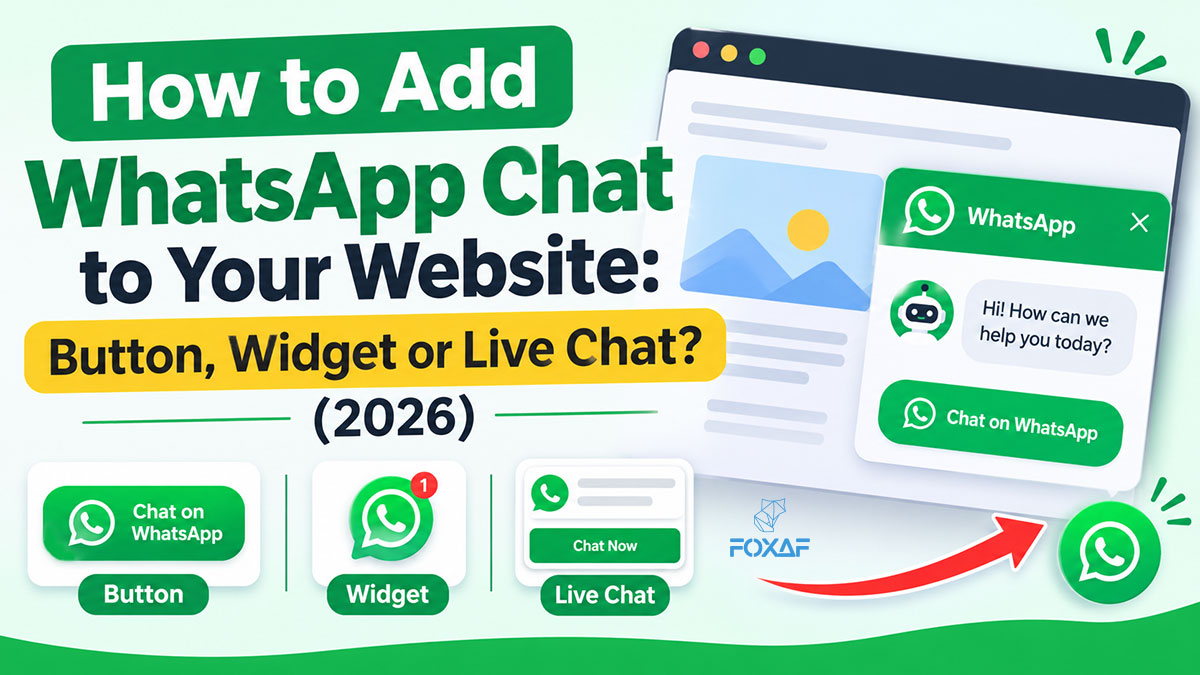
Short answer: There are three ways to put WhatsApp on a website. A WhatsApp link or button opens the WhatsApp app and moves the chat there. A floating "Chat on WhatsApp" button does the same from every page. A live chat widget lets visitors talk to you on the page itself and continue on WhatsApp later. Pick the button if you want simple; pick the widget if you want to keep the visitor, the history and the lead.
This guide compares the three, shows how to add each one, explains what Meta lets you send after the chat (the part most guides skip), and lists the mistakes that waste website leads.
Three ways to add WhatsApp to a website, compared
| WhatsApp link or button | Floating WhatsApp button | Live chat widget that continues on WhatsApp | |
|---|---|---|---|
| What the visitor does | Taps a link, WhatsApp opens | Taps a button in the corner, WhatsApp opens | Types in a chat box on your page |
| Where the conversation happens | In WhatsApp | In WhatsApp | On your site first, then WhatsApp or email |
| Visitor leaves your page? | Yes | Yes | No |
| Works for visitors without WhatsApp? | No | No | Yes |
| You see who looked but didn't message? | No | No | Depends on the tool |
| Who answers out of hours | Nobody, unless your WhatsApp has an auto reply | Same | An AI agent or an away message |
| Setup | Paste a link | A plugin or a small snippet | One script tag from your chat tool |
| Best for | A contact page, a footer, a single product | Small shops where one person answers WhatsApp | Teams that sell or support from the website |
None of these is wrong. The question is what you lose with each one.
Option 1: a WhatsApp link or button
The simplest way is a click-to-chat link: a link that opens a WhatsApp chat with your number, optionally with a message already typed in. You put it behind a button that says "Chat on WhatsApp" on your contact page, in your footer, or next to a product.
You can make one in seconds with the FOXAF WhatsApp link generator. Our guide to WhatsApp links explains the link format, pre-filled messages and QR codes.
What it does well: it takes seconds to set up, it works on any website builder, and customers already know WhatsApp.
What you lose:
- The visitor leaves your page. If WhatsApp doesn't open (a desktop without WhatsApp, a work laptop), the lead is gone.
- You only ever see the people who actually sent a message. Everyone who tapped the button and changed their mind is invisible.
- The chat lands on whichever phone runs that number. If three people answer customers, they all share one phone or you need a shared inbox behind the number.
Option 2: a floating "Chat on WhatsApp" button
This is the same link, placed in a bubble that follows the visitor on every page, usually in the bottom corner. Most website builders have a plugin for it, and on WordPress or Shopify it takes a few clicks.
It catches visitors on any page, not only the contact page, so it usually brings more chats than a single link. It has the same trade-offs as Option 1: the visitor still leaves your site, and you still don't see anyone who didn't message.
Two placement tips:
- Keep it away from your own "Add to cart" or "Buy" button on mobile. A floating bubble that covers the checkout button costs you sales.
- Don't run a floating WhatsApp button and a chat widget as two separate bubbles fighting for the same corner. If you want both, use a widget that shows the WhatsApp option beside it.
Option 3: a live chat widget that continues on WhatsApp
A live chat widget is a chat box on your own website. The visitor types on your page, and your team (or an AI agent) answers there. The good ones don't end when the tab closes: they save the chat on a contact, so you can carry the conversation on over WhatsApp or email.
What it does well:
- The visitor stays on your page while they ask about the product they're looking at.
- It works for visitors who don't use WhatsApp, or who are on a desktop.
- The chat is saved on a contact, so the next person on your team sees what was said.
- An AI agent can answer common questions out of hours and hand the chat to a person when it needs one.
What it costs you: a little more setup than a link, and someone has to own the inbox. A widget nobody answers is worse than a button.
How to add each one to your website
A WhatsApp link or button
- Create the link with your number in international format and an optional pre-filled message (link generator).
- Add a button or text link in your website builder and paste the link as its address.
- Test it on a phone and on a desktop.
A floating WhatsApp button
- Install a WhatsApp button plugin for your platform, or paste the snippet your chat tool gives you.
- Set your number, the greeting text and the position.
- Check it on mobile, on your product page and on your checkout page.
A live chat widget
- Copy the widget's script tag from your chat tool's settings.
- Paste it into your site before the closing
</body>tag, or in the "custom code" / "footer scripts" box most builders have. - Set the colour, logo, launcher position and welcome message.
- Decide who answers: a person, an AI agent, or an AI agent that hands over to a person.
- Add a short pre-chat form, with a consent line if you plan to follow up on WhatsApp (next section).
What happens after the chat: the WhatsApp rules that matter
This is where website chats go wrong. A visitor leaves a phone number in your chat or form, closes the tab, and the team sends them a WhatsApp message the next day. Whether that's allowed depends on two Meta rules.
1. A phone number is not permission on its own. Meta's opt-in rules say a business needs both: the person has "given their mobile phone number" and the business has "opt-in permission from the recipient confirming that they wish to receive subsequent messages". Meta lists Website among its "examples of supported opt-in methods", so a website form can collect opt-in, if it says so clearly. Meta says businesses "must clearly state that a person is opting in to receive communication from the business" and "clearly state the business's name". The permission "can be general and not specifically for WhatsApp", but it has to be there.
So put one plain line next to the phone field, for example:
"Leave your number and [Your Business Name] will reply on WhatsApp. You can tell us to stop at any time."
2. A website chat doesn't open the WhatsApp window. Meta's customer service window starts "when a WhatsApp user messages you or calls you", and lasts 24 hours. Inside it, you can send normal replies. Outside it, "businesses can only send template messages to reach out to users". A chat in your website widget is not a WhatsApp message, so when you send the first WhatsApp message after a website chat, it has to be an approved template.
In practice:
| Situation | What you can send on WhatsApp |
|---|---|
| Visitor tapped your WhatsApp button and messaged you | Normal replies for 24 hours from their last message |
| Visitor chatted in your widget and left a number with a clear opt-in | An approved template to start the WhatsApp conversation |
| Visitor left a number but there was no opt-in line | Don't message them on WhatsApp; reply by the channel they used |
| Visitor replies to your template | Normal replies again, for 24 hours from their reply |
A good first template is short and useful: who you are, the question they asked, and one clear next step. Automating WhatsApp follow-ups covers timing and wording. For the reply customers get when they message you on WhatsApp out of hours, see WhatsApp auto replies for business.
How the FOXAF live chat widget works
FOXAF's live chat widget is built for Option 3: the website chat and the WhatsApp conversation sit on the same contact.
- Install it with one script tag. Copy it from your FOXAF settings and paste it before the closing
</body>tag. It works on WordPress, Shopify, custom builds, anything that renders HTML, and it loads asynchronously. - Brand it. Set your colour, logo, launcher position and welcome message.
- Let the AI agent answer. Your AI agent answers from your knowledge base and hands off to a human when a conversation needs one.
- Capture the lead. The pre-chat form can ask for a name, email and phone number, and the chat is saved on that contact. Your team can follow up on WhatsApp or email with the website chat in the history. You can also show a "Chat on WhatsApp" button beside the widget for visitors who'd rather switch straight away.
- Work it from one inbox. Widget chats land in the same shared inbox as your WhatsApp, email and SMS conversations. If the visitor comes back later, the widget reopens the same conversation instead of starting over.
Two optional tools help support teams: session replay, which plays back a visit (it's off until you turn it on for a widget), and co-browse, where you see the visitor's page and highlight where to click without controlling their screen (the visitor sees a prompt first, unless you set it to auto-accept). If you turn either on, tell visitors in your privacy notice and follow the law where you operate.
See FOXAF pricing for the plans, or read more about the live chat widget.
Mistakes that waste website chats
- A button that only works on phones. Desktop visitors without WhatsApp tap it and nothing useful happens. Give them a web chat or an email option too.
- Collecting numbers without an opt-in line. You end up with a list you can't message on WhatsApp.
- Messaging a website lead as if they'd written to you on WhatsApp. They didn't. The first message is a template.
- A widget nobody answers. Set an away message or an AI agent for out-of-hours, and say when a person will reply.
- Two bubbles in one corner. A WhatsApp button and a chat widget stacked on top of each other confuse visitors and hide your checkout button on mobile.
- Losing the history. If the website chat and the WhatsApp chat live in different tools, your team asks the customer the same questions twice.
Frequently asked questions
How do I add WhatsApp chat to my website?
Use a WhatsApp click-to-chat link behind a button, a floating WhatsApp button plugin, or a live chat widget that continues on WhatsApp. A link or button is the quickest. A widget keeps visitors on your page and saves the chat on a contact.
What is the difference between a WhatsApp button and a live chat widget?
A WhatsApp button opens the WhatsApp app, so the visitor leaves your site and the chat happens on WhatsApp. A live chat widget runs on your website, so the visitor chats on the page and you can continue on WhatsApp or email later.
Can I add a WhatsApp chat widget to WordPress or Shopify?
Yes. Most WhatsApp button plugins support WordPress and Shopify. A live chat widget is usually one script tag pasted before the closing body tag, or into the custom code box your builder provides.
Can I message a website visitor on WhatsApp after they leave their number?
Only with their permission. Meta requires the phone number and an opt-in that clearly names your business. Because a website chat doesn't open WhatsApp's 24-hour customer service window, your first WhatsApp message must be an approved template.
Does a website chat open the 24-hour WhatsApp window?
No. Meta's customer service window starts when a WhatsApp user messages or calls your business on WhatsApp. A chat in your website widget is a different channel, so it doesn't open the window.
What should the opt-in line on my website form say?
State your business name and that the person will get messages from you, for example: "Leave your number and [Your Business Name] will reply on WhatsApp. You can tell us to stop at any time."
Can an AI agent answer my website chat?
Yes, if your chat tool supports it. In FOXAF, the AI agent answers website visitors from your knowledge base and hands the conversation to a person when it needs one.
Will a chat widget slow down my website?
A well-built widget loads asynchronously, after the rest of your page, so visitors see your content first. Test your pages after installing any widget or plugin.