Free WhatsApp QR Code Generator — PNG/SVG Download
Generate unlimited WhatsApp QR codes instantly — free, no signup, no downloads. Turn business cards, signage & packaging into WhatsApp conversations.
Free WhatsApp QR Code Generator — Create Scannable Codes Instantly
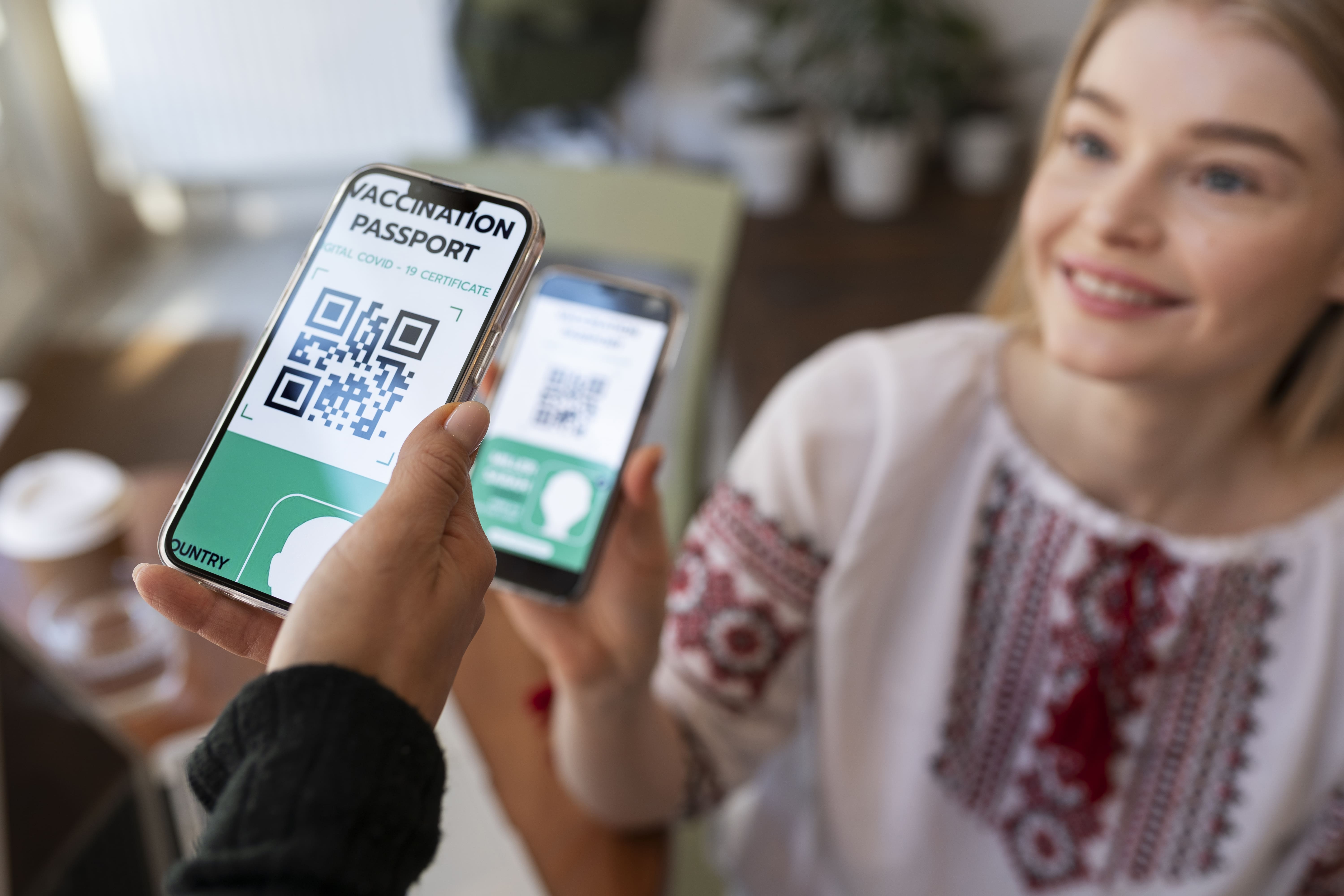
A WhatsApp QR code is a scannable code that instantly opens a WhatsApp chat with your number when scanned. Users scan it with their phone camera (no app needed) and tap to start chatting. Use QR codes on business cards, packaging, storefronts, flyers, or any print material.
Generate Your WhatsApp QR Code
[TOOL SECTION — Developer implementation required]
Instructions for Devin:
- Phone number input field with country code dropdown
- Pre-filled message input field (optional, 0-500 chars with character counter)
- QR code customization options:
- Size selector: 200×200, 512×512, 1024×1024, 2048×2048 pixels
- Format selector: PNG or SVG
- Foreground color picker (default black #000000)
- Background color picker (default white #FFFFFF)
- Logo upload option (max 2MB, overlay at 15-20% QR area)
- Contrast validator: warn if contrast ratio <10:1
- Real-time QR code preview (updates as user changes options)
- "Download QR Code" button (PNG or SVG based on selection)
- "Get Click-to-Chat Link" button (cross-sell to /tools/whatsapp-link-generator/ with pre-filled params)
- "Save to FOXAF CRM" button (triggers trial signup modal + downloads QR)
- Library recommendation: kjua for both PNG and SVG support
- Underlying format: wa.me link (https://wa.me/[country_code][number]?text=[URL-encoded_message])
- Error correction level: M (medium) or H (high) if logo overlay enabled
- Page must be SSR for crawlability
How to Use Your WhatsApp QR Code
Print or display your QR code anywhere customers need quick contact access. Each placement reaches different audiences.
Business Cards: Print on the back at minimum 2cm × 2cm size. Recipients scan to save your contact and start conversations immediately.
Product Packaging: Add QR codes to boxes, labels, or inserts. Customers scan for support, reorders, or reviews. Pre-fill messages like "I need help with order #..." to streamline support.
Storefront Windows: Display as posters or decals. Passersby scan to ask about hours, availability, or services without entering the store.
Restaurant Menus: Place on table tents or menu corners. Customers scan to place orders, make reservations, or request service.
Event Badges & Posters: Trade shows, conferences, and networking events. Attendees scan to connect instantly without typing contact details.
Flyers & Brochures: Print marketing materials with QR codes. Prospects scan to ask questions or request quotes while interest is high.
Invoices & Receipts: Add to printed or PDF invoices. Customers scan for payment reminders, reorder convenience, or billing questions.
Vehicle Wraps: Couriers, delivery services, and mobile businesses. Customers scan to track deliveries, report issues, or book services.
Social Media Posts: Share QR code images on Instagram, Facebook, or LinkedIn. Followers scan from one device to chat on another.
Email Signatures: Include QR in HTML email signatures. Mobile users scan instead of tapping small phone number links.
WhatsApp QR Code Specifications & Best Practices
Size & Resolution Guidelines
Print size determines scannability. Too small and cameras struggle to focus. Too large wastes space.
Minimum print size: 2cm × 2cm (0.8" × 0.8") for reliable scanning at arm's length. This works for business cards, name badges, and product labels.
Recommended print size: 3cm × 3cm to 5cm × 5cm for optimal scannability. Larger codes scan faster and from greater distances.
Distance-based sizing: Use the 10:1 rule for displays viewed from far away. Divide scanning distance in inches by 10. A billboard viewed from 100 inches needs a 10-inch QR code minimum.
Digital resolution: 512×512px minimum for web use. 1024×1024px or higher for print. Vector formats (SVG) eliminate resolution concerns entirely.
Aspect ratio: Always 1:1 (square). Never stretch or distort QR codes. Scanning relies on precise geometric ratios.
Color & Contrast Best Practices
Scanners detect QR codes through contrast. High contrast ensures reliable scanning across lighting conditions and camera quality.
High contrast required: Dark QR code on light background. Black on white provides 21:1 contrast and scans under virtually any condition.
Avoid light-on-dark: Inverted colors (white QR on black background) fail with some phone cameras. Stick to dark-on-light for reliability.
Custom colors: Acceptable if contrast ratio ≥4:1 minimum (10:1 recommended). Test QR codes with 3-4 different phones before mass printing.
Background: Solid color only. No gradients, patterns, or images behind QR codes. Complex backgrounds interfere with edge detection.
Quiet zone: Leave 4-module white border around QR codes. QR code libraries handle this automatically. The quiet zone prevents surrounding elements from interfering with scanning.
Pre-Filled Messages & Error Correction
Pre-filled messages appear in the user's message input field when they scan and open WhatsApp. Users must tap "Send" to actually send it.
Pre-filled message limit: Keep under 100 characters. Longer messages increase QR complexity and reduce scannability. QR codes encode more data into smaller modules as content grows.
Error correction level: QR codes have built-in redundancy. They scan even if 7-30% damaged depending on error correction level. Higher error correction allows logo overlays.
Logo overlay limit: If adding logos, keep them under 20% of QR area. Larger logos exceed error correction capacity and prevent scanning.
Test before printing: Always scan your QR with 3-4 different phones (Android and iOS) before mass printing. Catch issues while changes cost nothing.
QR Code Format Guide — PNG vs SVG
Choose format based on where you'll use the QR code. Digital and print have different requirements.
| Factor | PNG | SVG |
|---|---|---|
| Best for | Digital (websites, social media, emails) | Print (business cards, packaging, posters) |
| Scalability | Fixed resolution — pixelates if enlarged | Vector — infinite scaling, no quality loss |
| File size | Larger (especially high-res) | Smaller |
| Editing | Raster — cannot edit cleanly | Vector — can edit colors/size in Illustrator/Inkscape |
| Compatibility | Universal (all devices, all apps) | May not display in some email clients or old apps |
| Print quality | Good at high DPI (1024×1024+ recommended) | Perfect at any size |
Recommendation: Download BOTH formats when generating. Use PNG for digital, SVG for print.
Pro tip: If sending QR codes to designers or printers, always provide SVG. They scale to any print size without quality loss. PNG files require regeneration at higher resolution if print size increases.
WhatsApp QR Code vs Link — When to Use Each
QR codes and click-to-chat links serve different contexts. Use the right tool for each situation.
| Context | Use QR Code | Use Link |
|---|---|---|
| Print materials (business cards, flyers, packaging) | ✅ Primary | ❌ |
| Digital (website, social media, email) | ❌ | ✅ Primary |
| Mobile screens | ✅ (if user on different device) | ✅ (if user on same device) |
| Trade shows/events | ✅ Preferred | ❌ |
| SMS campaigns | ❌ | ✅ Preferred |
| Billboards/outdoor signage | ✅ Preferred | ❌ |
| In-app messaging (Instagram DMs, etc.) | ❌ | ✅ Preferred |
Context explanation: Use QR codes when users view on a DIFFERENT device than they'll use to scan. Print flyers viewed with eyes, scanned with phones. Use WhatsApp click-to-chat links when users view on the SAME device they'll click from. Instagram bio on phone, tap to chat on phone.
Read our detailed QR vs link comparison for cross-channel strategies.
How to Scan a WhatsApp QR Code
Recipients of your QR code need quick scanning instructions. Share these three methods.
Method 1: Built-in Camera App (iOS/Android)
- Open your phone's camera app (no QR reader app needed)
- Point camera at the QR code
- Tap the notification/banner that appears ("Open in WhatsApp" or "wa.me link")
- WhatsApp opens automatically with pre-filled message (if any)
- Tap Send to start the conversation
Method 2: Google Lens (Android) or Visual Search (iOS)
- Long-press the QR code image (if digital, not printed)
- Select "Search with Google Lens" or "Look Up"
- Tap the wa.me link result
- WhatsApp opens with chat
Method 3: WhatsApp In-App Scanner (Alternative)
WhatsApp's built-in scanner is for linking devices (WhatsApp Web), not chat QR codes. Use your camera app instead for chat QR codes.
Troubleshooting: If QR doesn't scan, ensure good lighting, hold steady, and check that QR is not damaged or distorted. Test contrast if you used custom colors.
Manage Your WhatsApp Conversations with FOXAF CRM
Generating QR codes is easy. Managing incoming conversations from multiple QR sources is hard.
Print QR codes on business cards, packaging, and storefronts and conversations come from many sources with no way to track which QR drove which conversation. You need source tracking and team collaboration.
FOXAF CRM solves this with auto-tagging, shared inbox, and performance tracking:
Auto-tag conversations by QR source: Create unique QR codes for different placements (business card QR, packaging QR, storefront QR) with different pre-filled messages. FOXAF auto-tags conversations by source. See which placements drive conversations.
Shared team inbox: All WhatsApp conversations in one place. No phone handoff. No "whose phone did this customer message?" Everyone sees conversation history and customer context.
QR performance tracking: See which QR placements drive the most conversations. Packaging vs business cards vs storefront. Double down on high-performing channels.
AI chatbot for instant replies: Qualify leads and answer FAQs automatically when someone scans your QR. Enable instant automated responses when your team is offline.
Lead scoring and CRM integration: Auto-save contacts who scan your QR. Assign lead scores based on conversation content. Trigger follow-up workflows based on intent signals.
Start your free trial — includes unlimited QR codes, link generation, and shared team inbox.
Advanced: Dynamic WhatsApp QR Codes with FOXAF API
Static QR codes (generated with this tool) always link to the same number. Dynamic QR codes change the destination or pre-filled message without reprinting the QR.
Use case: E-commerce packaging. Same printed QR code, but pre-filled message changes based on order number, product, or customer name. "Hi, I need help with order #12345 (blue widget)" instead of generic "Hi, I need help."
FOXAF solution: Use FOXAF's API to generate dynamic wa.me links with variables (order ID, customer name, product SKU). QR stays the same, message personalizes based on context.
This requires FOXAF's WhatsApp Business API integration. Contact sales to discuss plan requirements and set up dynamic QR codes.
Read our dynamic QR code setup guide for implementation details.
Frequently Asked Questions
Is this WhatsApp QR code generator free?
Yes, 100% free. Generate unlimited QR codes in PNG or SVG format with customization options. No account required. No hidden fees.
Do WhatsApp QR codes expire?
No. WhatsApp QR codes are permanent as long as the phone number remains active. Unlike some QR services, there's no expiration or link rot. The QR always points to your WhatsApp number.
Can I customize the QR code color?
Yes. You can change the QR code color and background color using our tool. However, ensure high contrast (dark QR on light background) for reliable scanning. Avoid light-colored QR codes on dark backgrounds — they may not scan properly. Minimum contrast ratio: 4:1 (10:1 recommended).
What size should I print my WhatsApp QR code?
Minimum 2cm × 2cm (0.8" × 0.8") for business cards. For posters, flyers, or storefronts, print 5cm × 5cm or larger for easy scanning from a distance. Always use SVG format for print to avoid pixelation. PNG files need 1024×1024px or higher resolution for print quality.
Can I add my logo to the QR code?
Yes. Our tool lets you overlay a logo in the center of the QR code. Keep the logo under 20% of the QR area to preserve scannability. QR codes have built-in error correction, so a small logo won't break scanning. Test with multiple phones before mass printing.
Will the pre-filled message be sent automatically when someone scans?
No. Pre-filled messages appear in the user's message input field when they scan and tap to open WhatsApp, but they must tap "Send" to actually send it. This gives them a chance to edit or personalize the message before sending.
Can I track how many people scan my WhatsApp QR code?
WhatsApp doesn't provide native scan tracking. To track performance, create unique QR codes for different placements (e.g., business card QR with message "Hi from [Your Name]'s card", storefront QR with "Hi, I'm outside your store"). Use a WhatsApp CRM like FOXAF to automatically tag and count conversations by source.
Do I need a WhatsApp Business account to use QR codes?
No. QR codes work with regular WhatsApp accounts and WhatsApp Business accounts. However, if you're using QR codes for business purposes (customer support, sales, marketing), WhatsApp Business or WhatsApp Business API is recommended for access to business features like away messages, quick replies, and multi-user access.
Can I create multiple QR codes for the same number?
Yes. Generate different QR codes with unique pre-filled messages for different placements (e.g., "Hi from the trade show" for event badges, "I need support with order #..." for packaging). This helps you track which placement drives conversations. Each QR encodes a different wa.me link with different pre-filled text.
What's the difference between PNG and SVG QR codes?
PNG is a raster image format (fixed resolution) — best for digital use (websites, social media, emails). SVG is a vector format (infinite scaling) — best for print (business cards, posters, packaging). SVG files are smaller and never pixelate when enlarged. Download both formats if you'll use QR codes in print and digital contexts.
Sources
- Scanova WhatsApp QR Code Guide 2026
- DelightChat WhatsApp QR Code Generator
- Uniqode QR Code Printing Guidelines 2026
- QR Code Dynamic Size Guide 2026
- QR Forever Size Guide 2026
- UseQRKit Size Chart 2026
- QR Insights Design Best Practices 2026
- Interakt WhatsApp QR Code Generator
- Gallabox WhatsApp QR Code Generator
Frequently asked questions
Is this WhatsApp QR code generator really free?
Yes, completely free with no signup, no credit card, no hidden fees. Generate unlimited QR codes for personal or commercial use. There are no limits on the number of QR codes you can create.
Do I need a WhatsApp Business account to use QR codes?
No, QR codes work with any WhatsApp number (personal or Business). However, WhatsApp Business (app or API) offers additional features like automated greetings, away messages, quick replies, and product catalogs that improve customer experience.
Can I customize the QR code design (colors, logo)?
Basic customization (QR code color) is available in this tool. For advanced branding (custom logos, gradients, patterns), you may need a dedicated QR design platform. Ensure scannability isn't compromised — test heavily branded QR codes on multiple devices before printing.
How do I track how many people scan my QR code?
WhatsApp QR codes don't have native scan tracking. To track performance, use unique pre-filled messages per campaign ("Hi, I scanned your QR at [Location]") or unique phone numbers per placement. Count incoming chats with each message variant. For advanced tracking, embed UTM parameters in the message text (requires technical setup and analytics integration).
Can I use the same QR code for multiple campaigns?
You can, but it makes tracking impossible. Best practice: create unique QR codes per campaign or location with distinct pre-filled messages. This lets you know which placement drove each conversation. For example, use "Hi, I scanned your QR at Trade Show A" for one event and "Hi, I scanned your QR at Trade Show B" for another.
Do QR codes expire?
No, static QR codes (like the ones generated here) never expire. They permanently encode your WhatsApp link. As long as your phone number remains active, the QR code will work. Dynamic QR codes from other platforms may expire if the redirect service shuts down or subscription lapses.
What file formats can I download?
PNG (for print and digital use) and SVG (scalable vector for large prints without quality loss). Use PNG for business cards, flyers, and small prints. Use SVG for banners, signage, and large-format prints where scaling without pixelation matters.
Are WhatsApp QR codes GDPR-compliant?
QR codes themselves are just links — compliance depends on how you use them. If you collect personal data via WhatsApp conversations (names, emails, purchase history), ensure you have a privacy policy and obtain consent where required (EU GDPR, California CCPA, UK GDPR). Add a disclaimer near the QR code: "By scanning, you agree to our Privacy Policy." Store consent records and provide opt-out mechanisms in your WhatsApp messages.