How to Send WooCommerce Order Notifications on WhatsApp (and Confirm COD Orders)
Three ways to send WooCommerce order updates on WhatsApp — click-to-chat, a plugin, or a CRM — plus how to confirm cash-on-delivery orders with one tap and keep Meta's template rules.
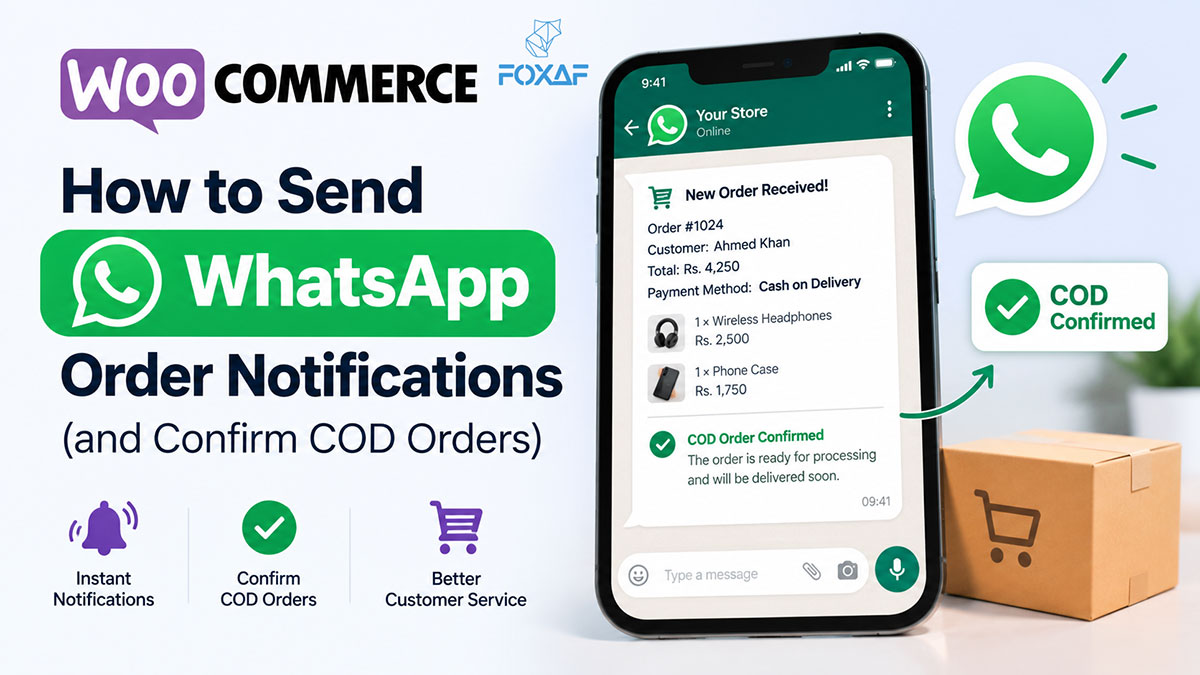
Short answer: To send WooCommerce order notifications on WhatsApp, connect your store to the WhatsApp Business Platform through a plugin or a CRM, create Meta-approved Utility templates for each order event (placed, paid, shipped, refunded), and map each WooCommerce status change to a template. For cash-on-delivery stores, add one more template with Confirm order and Cancel order buttons. Then let the customer's tap update the WooCommerce order status for you.
That is the whole job. The rest of this guide covers the three ways to do it, which one fits your store, and the template rules that get stores blocked when they're ignored.
Why send WooCommerce order updates on WhatsApp at all?
Email order confirmations work well where customers live in their inbox. In much of South Asia, the Middle East and Africa they don't: the customer gave you a phone number, and that number is a WhatsApp account. An order update on WhatsApp arrives where the customer already talks to their family, their tailor and their courier.
It also opens a two-way channel. An email saying "your order is confirmed" is a dead end. A WhatsApp message with a button can ask the customer something and act on the answer, and that is what makes cash-on-delivery confirmation possible.
What are the three ways to connect WooCommerce to WhatsApp?
| Approach | How it works | Good for | Watch out for |
|---|---|---|---|
| 1. Click-to-chat links | A wa.me link or button on the thank-you page; the customer messages you first |
Very small stores, zero budget | Nothing is automatic — every reply is a person typing |
| 2. A notification plugin | A WordPress plugin sends templated messages through a WhatsApp Business API provider | Stores that only need one-way alerts | Alerts land in a phone or a separate tool; replies don't reach your order data |
| 3. A CRM with a WooCommerce integration | Orders and customers sync into a shared WhatsApp inbox; order events trigger workflows | Stores with a team, COD volume, or repeat buyers | Costs more than a plugin; needs an hour of setup |
1. Click-to-chat links (free, manual)
Put a WhatsApp button on your order-received page that opens a chat with your business number, pre-filled with the order number. You can build the link in seconds with a free WhatsApp link generator.
This is honest and free, but it is not a notification system. Your customer has to start the conversation, and someone on your side has to answer each one by hand. Once you're past a few orders a day, you'll outgrow it.
2. A WhatsApp notification plugin (one-way, automatic)
Many WordPress plugins send a WhatsApp message when an order changes status. Most work through a WhatsApp Business API provider and Meta-approved templates. They solve the "tell the customer" half of the problem well.
They usually stop there. When the customer replies "can you deliver tomorrow instead?", that reply goes to a phone or a separate dashboard. It isn't attached to the order, and your team ends up switching between WordPress and WhatsApp to answer it.
3. A WhatsApp CRM with a WooCommerce integration (two-way)
A CRM integration syncs every order and customer into the same inbox your team already answers WhatsApp from. Order events start workflows, and the workflows can write back to WooCommerce: change the status, add a note, or create a coupon.
This is the only one of the three where a customer's WhatsApp reply can change the order, and that's what cash-on-delivery confirmation needs.
How does WooCommerce COD confirmation on WhatsApp work?
By default, WooCommerce's built-in Cash on delivery payment method marks a new physical-goods order as Processing as soon as it is placed. In other words, ready to pack and ship, whether or not the buyer meant it. A COD confirmation step puts a question in between:
- Customer places a COD order. WooCommerce records it.
- A WhatsApp Utility template goes out immediately: order number, items, total, delivery address, and two buttons: Confirm order and Cancel order.
- The customer taps a button.
- Confirm → the order moves to Processing and a note is added ("Confirmed by customer on WhatsApp").
- Cancel → the order moves to Cancelled, and you have shipped nothing.
- No reply? A workflow waits a set time and sends one reminder. If there's still no answer, it flags the order for a person to call.
- Your team sees it all in one place, with the order history next to the conversation.
The point is not the message. It's that the order status follows the customer's answer without anyone copying information between two apps. For the economics of why this matters to COD-heavy stores, see our guide on how WhatsApp reduces RTO for Pakistani ecommerce and how to reduce COD returns with WhatsApp.
Which WooCommerce events should send a WhatsApp message?
Not every event deserves a message. Send too many and customers mute you; send the wrong kind and Meta may restrict your number. A sensible starting set:
| WooCommerce event | Who gets it | Template category | Why |
|---|---|---|---|
| Order placed (COD) | Customer | Utility | The confirmation question, with buttons |
| Order placed | Your team | — (internal) | Someone knows a new order exists |
| Order paid | Customer | Utility | Reassurance for prepaid orders |
| Tracking number added | Customer | Utility | Cuts "where is my order?" messages |
| Order refunded | Customer | Utility | Closes the loop |
| Cart abandoned | Customer | Marketing | Only with opt-in; it's promotional by Meta's rules |
| Customer quiet for N days | Customer | Marketing | Win-back; opt-in only |
| Product back in stock | Customer | Marketing | Only to people who asked to be told |
What are Meta's rules for WhatsApp order notifications?
This is where stores get into trouble, so it's worth being precise.
- Business-initiated messages must use a pre-approved template. You submit the wording to Meta and it's reviewed before you can send it.
- Templates have a category. Order, shipping and payment updates the customer expects are Utility. Anything that tries to sell (a discount, a "come back" nudge, a new product) is Marketing, even if it's sent after an order. Mislabel a promotional message as Utility and Meta can re-categorise or reject it.
- The 24-hour customer-service window. When a customer messages you, you can reply freely for 24 hours. Outside that window you need a template.
- Meta charges per template message, at a rate that depends on the category and the customer's country. Rates change, so check Meta's current WhatsApp pricing before you budget. Don't trust a figure in a blog post, including this one.
- Opt-in matters for Marketing. Abandoned-cart and win-back messages should only go to customers who agreed to hear from you on WhatsApp.
If you're unsure whether you need the Business API at all, read WhatsApp Business App vs API. The short version is that automated order alerts to customers need the API.
Can I use a normal WhatsApp number instead of the Business API?
Technically, some tools can send through a WhatsApp number linked by scanning a QR code, the same way WhatsApp Web works. It's quick to set up and avoids template approval.
It's also unofficial. Meta doesn't support automated customer messaging that way, and numbers that send lots of automated messages risk being restricted. Our recommendation is the same as on our own integration page: use the official WhatsApp Cloud API for anything sent to customers, and keep a QR-linked number, if you use one at all, for alerts to your own team. There's a fuller comparison in WhatsApp Business API vs App.
Example templates you can adapt
COD confirmation (Utility, two quick-reply buttons):
Hi {{1}}, thanks for your order #{{2}} from {{3}}. Total: {{4}}, payable on delivery to: {{5}}. Please confirm so we can dispatch it.
Quick-reply buttons: Confirm order · Cancel order
Shipped with tracking (Utility):
Good news, {{1}} — order #{{2}} is on its way with {{3}}. Track it here: {{4}}
Abandoned cart (Marketing, opt-in only):
Hi {{1}}, you left {{2}} in your cart at {{3}}. It's still saved for you: {{4}}
Keep Utility templates purely about the order. The moment a coupon appears, it's a Marketing message.
How do I set this up with FOXAF?
FOXAF is a WhatsApp-first CRM, and its WooCommerce integration is approach #3 above. Setup takes three steps and no developer:
- Install the plugin. In FOXAF, open Settings → Integrations → WooCommerce and download the plugin, then upload it in WordPress under Plugins → Add New → Upload. (It isn't on WordPress.org yet, so this is how you get it.)
- Paste your API token. Create a FOXAF API token on the same settings page and paste it into the plugin. Orders start syncing.
- Choose your alerts. Pick which order events send a message, to whom, and on which channel: WhatsApp, SMS or email.
What you get depends on the plan:
- Starter (from $29/month): order alerts on WhatsApp, SMS and email, store connection and order sync, and every order visible on the customer's contact and in the shared inbox.
- Pro: everything in Starter, plus COD confirmation with Confirm/Cancel buttons, abandoned-cart recovery and win-back, 12 order and cart triggers for workflows, store actions (change status, add a note, generate a coupon), and an AI agent that can look up a customer's orders itself.
The Free plan doesn't include the WooCommerce integration. Current prices for every plan are on the pricing page.
The 12 triggers, so you can plan your workflows: order placed · order paid · order status changed · order refunded · note to customer added · tracking added · cart abandoned · abandoned cart recovered · product review posted · customer has not ordered for N days · customer total spend reaches an amount · product back in stock.
If you're on Shopify rather than WooCommerce, the same COD flow is covered in WhatsApp CRM for Shopify stores in Pakistan.
Which approach should you choose?
- Fewer than ~5 orders a day, no COD: click-to-chat links are enough.
- Only need to tell customers their status: a notification plugin is fine.
- You sell on cash-on-delivery, have more than one person answering customers, or want repeat buyers back: you need replies to reach your order data. That means a CRM integration.
The honest test: when a customer replies to your order message, where does that reply go, and who does something with it? If the answer is "a phone in someone's pocket", your notifications are one-way, however automated they look.
Frequently asked questions
Can WooCommerce send WhatsApp messages without a plugin?
Not automatically. WooCommerce sends emails out of the box. To send WhatsApp messages on order events you need a plugin or a CRM integration connected to the WhatsApp Business Platform.
Do I need the WhatsApp Business API for WooCommerce order alerts?
For automated alerts to customers, yes, the official WhatsApp Cloud API is the supported route. Business-initiated messages go out as Meta-approved templates.
Are WooCommerce order notifications Utility or Marketing templates?
Order placed, paid, shipped and refunded updates are Utility. Abandoned-cart reminders, win-back messages and anything with a discount are Marketing.
How do I confirm cash-on-delivery orders on WhatsApp in WooCommerce?
Send a Utility template with Confirm and Cancel buttons as soon as a COD order is placed, and use a tool that updates the WooCommerce order status from the customer's tap. Confirmed orders go to Processing; cancelled ones to Cancelled.
What status does WooCommerce give a new cash-on-delivery order?
By default, WooCommerce's built-in Cash on delivery method sets new orders for physical products to Processing as soon as they're placed.
How much does WhatsApp charge per order message?
Meta charges per template message, and the rate depends on the template category and the customer's country. Rates change, so check Meta's WhatsApp pricing page for current figures.
Can I send abandoned cart reminders on WhatsApp from WooCommerce?
Yes, as Marketing templates sent only to customers who opted in. In FOXAF, abandoned-cart recovery and win-back are on the Pro plan.
Is the FOXAF WooCommerce plugin on WordPress.org?
Not yet. You download it from your FOXAF account under Settings → Integrations → WooCommerce and upload it in WordPress.
Which FOXAF plan includes the WooCommerce integration?
Starter and above. Starter covers order alerts, store connection and order sync. Pro adds COD confirmation, abandoned-cart recovery, win-back, the 12 order triggers and store actions. The Free plan doesn't include it.
Does FOXAF integrate with Shopify too?
A Shopify app is in early access and not yet live. WooCommerce is available now.
Can my team see WooCommerce orders inside WhatsApp conversations?
With a CRM integration, yes. Each customer becomes a contact with their order history next to the conversation, so your team can answer "where is my order?" without opening WordPress.